
Scrubbing the decks
Presenters using LivePreso faced a recurring challenge: keeping up with changes to their decks. Content updates—whether additions, alterations, or removals—were difficult to track and contextualise within large, complex decks of content. Existing tools that we had previously provided were mere simple lists of changes much like a set of release notes, but it failed to show altered slides or where these changes fit within the the context of a deck.
The goal of this project was to design a UI solution that made it easier for presenters to identify, understand, and interact with updates, enabling them to more confidently navigate and know their content.
Problem
The limitations of the existing UI created frustration for users:
Limited Visibility: Only showed added or removed slides, ignoring alterations.
Lack of Context: Changes were presented as an isolated list, disconnected from the content and context of the deck.
Inefficiency: Presenters couldn’t preview or access updated slides without putting aside time to walk the deck and find what changed.
For large decks—often containing 8–10 sections with 50+ slides per section—these issues were compounded, leading to confusion, inefficient use of presenters time and often at the cost of missing changes until they presented to their customers.
Goal
To create a solution that:
Highlights changes at a glance, including additions, alterations, and removals.
Provides context for changes within the overall deck structure.
Enables deep interaction, allowing presenters quickly see, preview or dive into updated slides easily.
Challenges
The project required solving for three key challenges:
Glanceability: Ensuring the UI clearly communicated deck changes.
Contextual Clarity: Helping users understand where changes fit within the deck.
Usability for Large Decks: Designing for scalability while maintaining simplicity.
Process
1. Research and Discovery
Client Interviews: Conducted face-to-face interviews with both content creation teams and presenters to understand pain points and usage patterns.
Content Analysis: Reviewed customer decks to identify the worst-case scenarios, such as decks with large numbers of slides per section.
Competitive Audit: Explored how versioning systems in other domains (e.g., code repositories, document collaboration tools) represent changes, extracting high-level concepts to apply to slide decks.
2. Prototyping and Testing
Designed multiple low-fidelity prototypes representing different ways to show changes and contextualise them within the deck.
Developed a smaller set of prototypes to test with both our internal content team and presenters to evaluate comprehension and usability, iterating based on feedback.
3. Key Insights
From user research and testing, the following insights shaped the solution:
Visual Context Matters: Seeing the slides before and after a change helped users orient themselves within the deck.
Simplify for Scannability: Compressing unchanged slides into “stacks” reduced visual clutter while preserving context.
Customisation is Key: Some users preferred a high-level overview, while others wanted the ability to dive into detailed changes.
Big Decks = Big Problems: The larger the deck, the more essential it was to surface only relevant slides to avoid overwhelming users.
Solution

The final implementation leveraged these insights to create a robust yet simple UI:
High-Level Overview
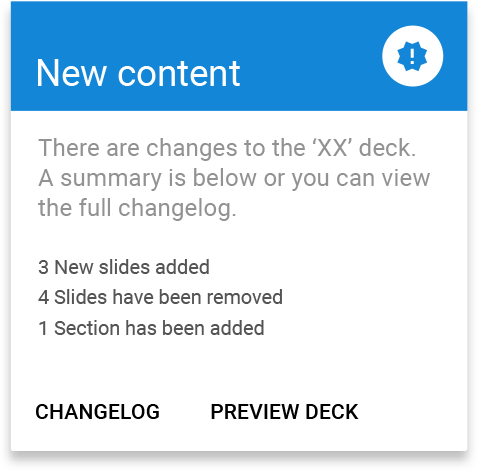
Notifications displayed a concise summary of changes, allowing users to decide if they needed to explore further.
Contextual Navigation
Dynamic Section Expansion: Only sections containing changes were expanded by default, keeping the interface focused.
Slide “Stacks”: Unchanged slides were grouped into stacks, reducing clutter while maintaining their positional context.
Adjacent Context: Slides immediately before and after a change were displayed, helping users orient themselves.
Visual Indicators
Distinct Colors:
New slides: Highlighted with a specific color.
Modified slides: Marked with another color.
Removed slides: Shown with low opacity.
Hover Interactions: Users could preview slides quickly without leaving the interface.
Actionable Options
Users could jump directly to a slide to review changes in detail or preview the updated content inline.
Results
The redesigned UI transformed how presenters engaged with content updates:
Increased Efficiency: Presenters could now locate and review changes within minutes, even in large decks.
Improved Clarity: The combination of visual indicators and contextual navigation reduced confusion about where changes had occurred.
Scalable Design: The system handled both small and large decks gracefully, meeting the needs of diverse user scenarios.
Lessons Learned and Future Opportunities
What Worked
User-Centred Design: Frequent user feedback throughout the project ensured the solution met real-world needs.
Context-First Approach: Anchoring changes within the deck structure proved invaluable for usability of the updates tool.
Opportunities for Growth
Enhanced Customisation: Future iterations could allow users to filter by specific change types (e.g., additions only).
Version Comparisons: Introducing side-by-side comparisons of old and new slides could provide deeper insights.
Conclusion
The new UI not only enhanced clarity and efficiency but also demonstrated the power of applying versioning concepts to complex content structures, setting a new standard for managing updates in slide decks.
